Lesson 4 · launch
Publish once, then update from the same place
A new project shows Publish. After a successful launch the button changes to Update and updates the existing production version.
- Windows
- Linux AppImage
- Linux .deb
- macOS coming soon
Windows 10 or later or Ubuntu 22.04 or later (64-bit). macOS coming soon. About 1 GB of free disk space.
Windows may show a SmartScreen warning: click “More info”, then “Run anyway”.
Updated: . Checked in Studio 0.11.4.
1. Run the checks
Studio checks the build, required pages and main scenario. A fix is complete only after verification, not after an assistant message.
2. Confirm the address
Choose an available address for the first launch. Publishing changes an external system, so Studio asks for explicit confirmation.
3. Copy the working link
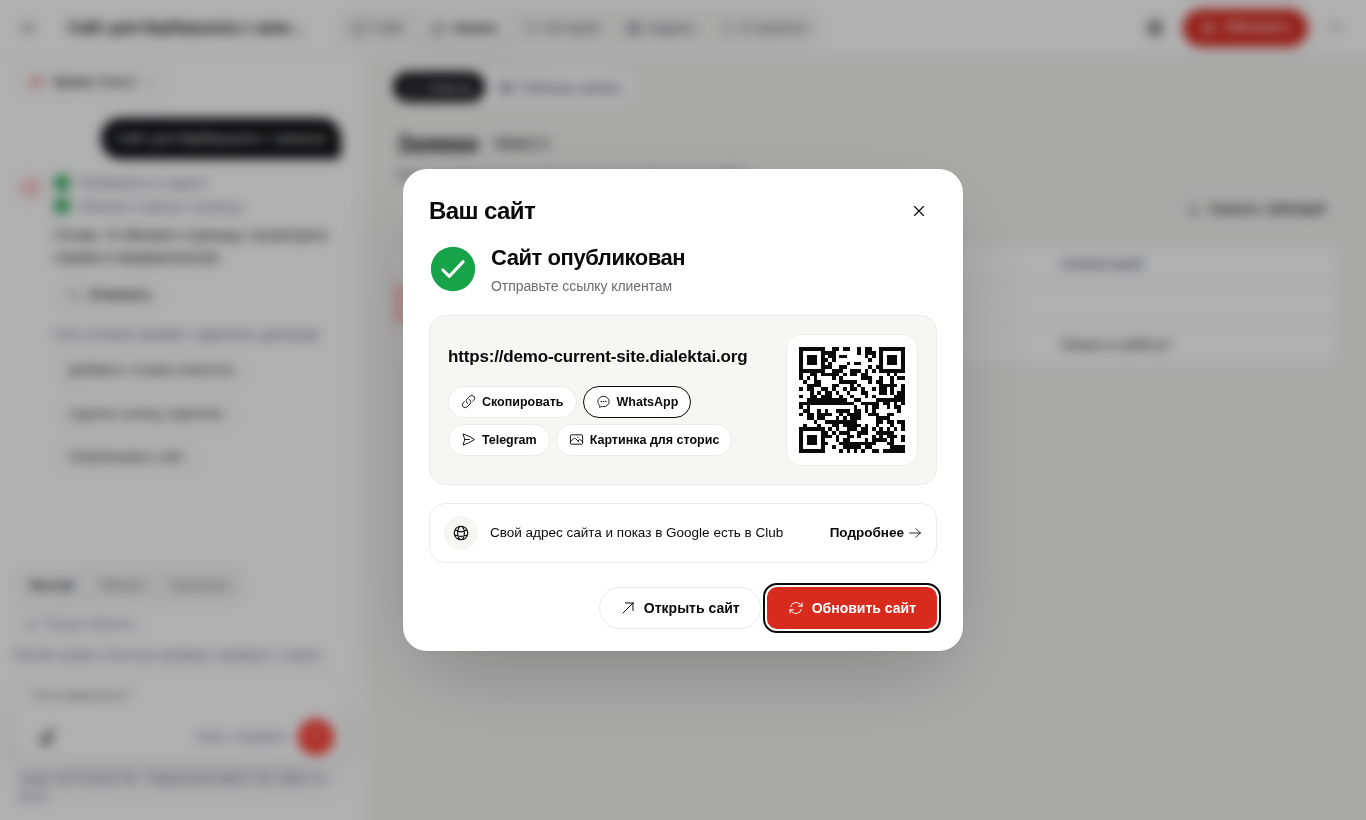
After success, the dialog shows the address, QR code and sharing options. Open the link separately and test as a visitor.
4. Update existing production
After the next edit the button says Update. It runs checks and replaces the current public version without creating a random new address.
When publishing did not update
Compare version time, open the link without stale cache and inspect deployment status. Do not click repeatedly while the previous deployment state is unknown.
Questions
Does the site work when Studio is closed?
Yes. The public version runs independently of the app.
How do I update an already published site?
Open the publishing dialog and click Update site. Studio keeps the existing address and updates its content.
The project is available at its link.
Send it to a test visitor and run the main scenario once more.