Lesson 6 · Telegram
Describe the bot and let Studio build the conversation
You do not need to fill a form with every question and answer in advance. Say what the bot should do and Studio creates the first working scenario.
- Windows
- Linux AppImage
- Linux .deb
- macOS coming soon
Windows 10 or later or Ubuntu 22.04 or later (64-bit). macOS coming soon. About 1 GB of free disk space.
Windows may show a SmartScreen warning: click “More info”, then “Run anyway”.
Updated: . Checked in Studio 0.11.4.
1. Describe the bot’s job
For example: "A Telegram bot that takes cake orders and asks for date, filling, name and phone." Studio passes the idea to its internal project manager and creates the scenario.
2. Test the conversation in preview
The right side shows what a customer receives. Ask for changes in chat. The Advanced manual setup button is only for a precise manual adjustment.
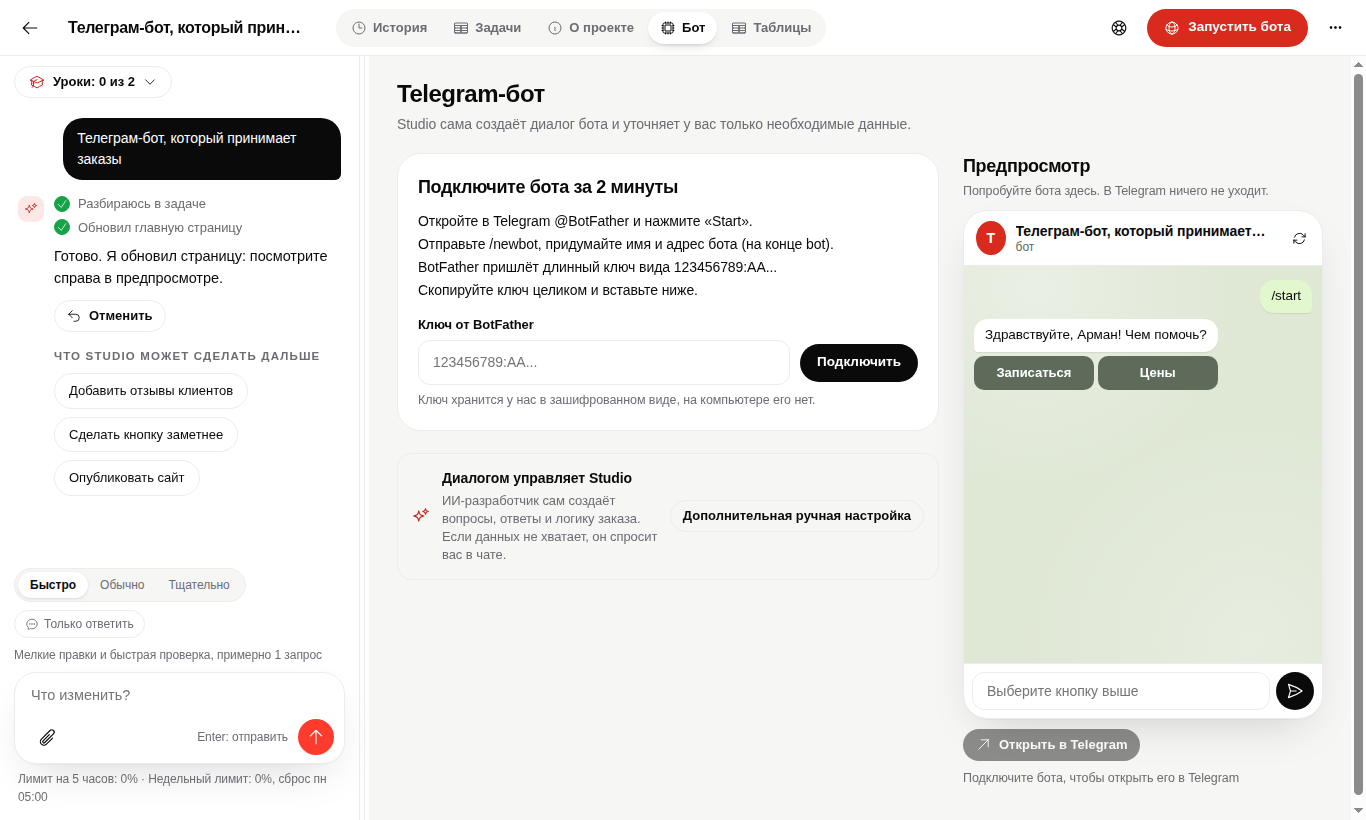
3. Connect the bot
Open @BotFather, create a bot with /newbot and paste the received token into BotFather token. Never publish this token or send it in agent chat.
4. Launch and complete the flow
Press Launch bot, open it in Telegram and place an order as a customer. Verify that the order is saved in the project table, not only acknowledged by the bot.
Questions
Do I fill every question and answer manually?
No. Studio creates the first scenario from your description and asks only about important product choices.
Where is the BotFather token stored?
It is stored in protected storage and is not passed to the agent chat.
Test the bot as a customer.
The order should complete the whole flow and appear inside the project.