Lesson 1 · getting started
Create the first project from one clear description
Say which result you need and who it is for. Studio asks only what matters, creates a plan and shows the first working version.
- Windows
- Linux AppImage
- Linux .deb
- macOS coming soon
Windows 10 or later or Ubuntu 22.04 or later (64-bit). macOS coming soon. About 1 GB of free disk space.
Windows may show a SmartScreen warning: click “More info”, then “Run anyway”.
Updated: . Checked in Studio 0.11.4.
1. Describe the result
Write one complete task on the start screen, such as: "A nail studio website with services, prices and booking". Do not write a technical specification or choose technologies.
2. Check what Studio understood
Studio shows the project type and a short description. It must not show `null`, internal fields or questions Studio can answer itself. If the meaning is right, confirm creation.
3. Wait for the first working version
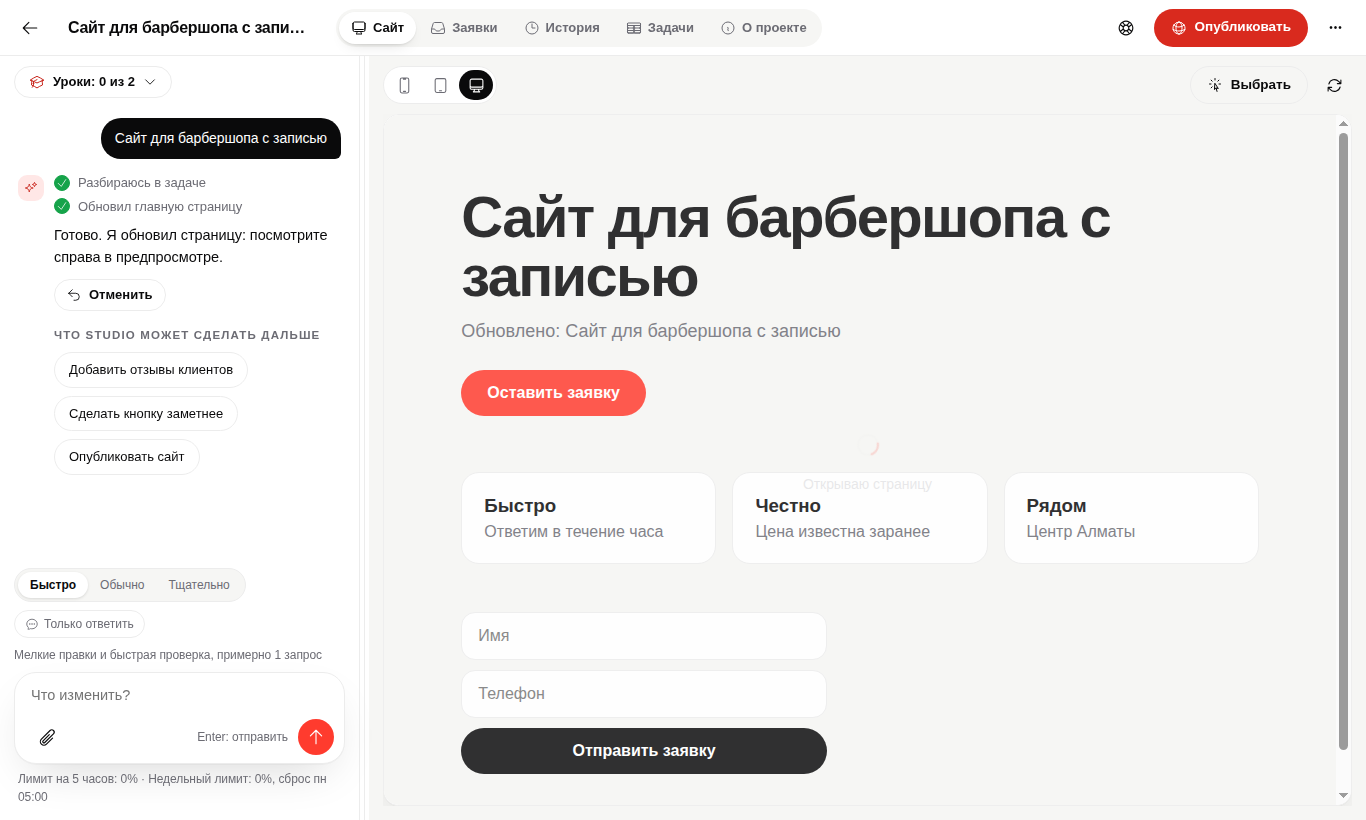
Studio creates a plan, completes tasks in sequence and opens the preview. Progress states keep a longer stage from looking frozen.
If the result is different
If the request disappears without a new turn, do not submit it repeatedly. Restart Studio and open the project so the unfinished turn can recover. If the project is missing, keep the original request and contact support.
Questions
Do I fill in every bot or website question?
No. Studio builds the default scenario and asks only for product decisions missing from the idea.
Where does the task list appear?
On the internal project board after the idea is confirmed. It is populated automatically.
The first version is ready.
Next, ask Studio to change the result in everyday words.